> ## Documentation Index
> Fetch the complete documentation index at: https://docs.wizflow.io/llms.txt
> Use this file to discover all available pages before exploring further.
# Tips & Best Practices
> Advanced techniques, keyboard shortcuts, and training insights for getting the most out of the AI Assistant.
## Keyboard Shortcuts
Master these shortcuts to build flows faster:
| Shortcut | Action |
| -------------- | -------------------------------------------------------- |
| `Ctrl + K` | Call the AI assistant |
| `Ctrl + E` | Enhance your prompt (adds detail and structure) |
| `1-9` | Quick select choices in conversations |
| `Ctrl + Enter` | Submit prompt to assistant |
| `Ctrl + Click` | Select multiple entities in the flow builder |
| `Ctrl + 1` | Insert a resource chip in the maximized rich text editor |
## Flow Builder Tips
### Validate Flows with Variables
Before publishing your flow, validate it using variables to ensure all paths work correctly:
1. Open the flow in preview mode
2. Test different conversation paths
3. Verify that variables are captured and used correctly
4. Check conditional logic with various inputs
Testing with variables helps catch issues before customers encounter them.
### Multi-Select Entities
Speed up your editing by selecting multiple entities at once:
* Hold `Ctrl` while clicking entities to select multiple
* Move, delete, or modify properties of multiple entities together
* Useful for reorganizing large sections of your flow
### Working with Images in Entities
The entity editor isn't just for text - you can create rich visual experiences:
* Add images to enhance visual appeal
* Combine text and images for better engagement
* Use images to illustrate complex financial concepts
* Leverage the image generation capabilities in chat settings
Images can significantly improve customer engagement in financial advisory flows.
## Chat Settings
The chat settings panel is crucial for customizing your assistant's behavior. Access it to:
**Adjust AI Assistant Behavior**
* Configure response style and tone
* Set knowledge boundaries
* Control verbosity and detail level
**Configure Image Generation**
* Enable/disable AI image generation
* Set image style preferences
* Control when images are generated
**Other Important Settings**
* Response formatting options
* Context window management
* Model selection (coming soon)
Take time to configure chat settings for each flow - defaults may not match your specific use case.
## General Usage Tips
### Managing AI Assistant Output
If the assistant creates too much content or goes into a loop:
* Ask it to limit the number of questions
* Specify exactly what you want (e.g., "create only 3 questions")
* Use the enhance prompt feature (`Ctrl + E`) to add constraints
### Request Custom Features
Need specific functionality for your business?
**Custom Entities and Components**
* Request specialized components for your use case
* We can create custom entities tailored to your institution
* Examples: Live PDF signatures, specialized calculators, custom visualizations
**Integration Support**
* Connect to your internal systems
* Custom API integrations
* Specialized triggers and actions
Contact our team to discuss your requirements - we provide customization for tenant-specific needs.
## Support
### We're Here to Help
**Support Availability**
* Contact our team for implementation questions
* Get help with complex flow design
* Request feature consultations
**What We Provide**
* Implementation support
* Custom component development
* Tenant-specific customization
* Integration assistance
Reach out to our support team for guidance on implementing complex flows or custom requirements.
***
## Wizflow Assistant Training Lab
### Assistant Feedbacks
#### What It Does
Collects user feedback on AI assistant responses to improve our wizflow assistant user experience.
**Key Benefits:**
* Captures user satisfaction and detailed issues
* Creates training datasets for model improvement
* Provides insights into assistant performance
* Measure User Satisfaction
#### Feedback rating footer - how users give feedback
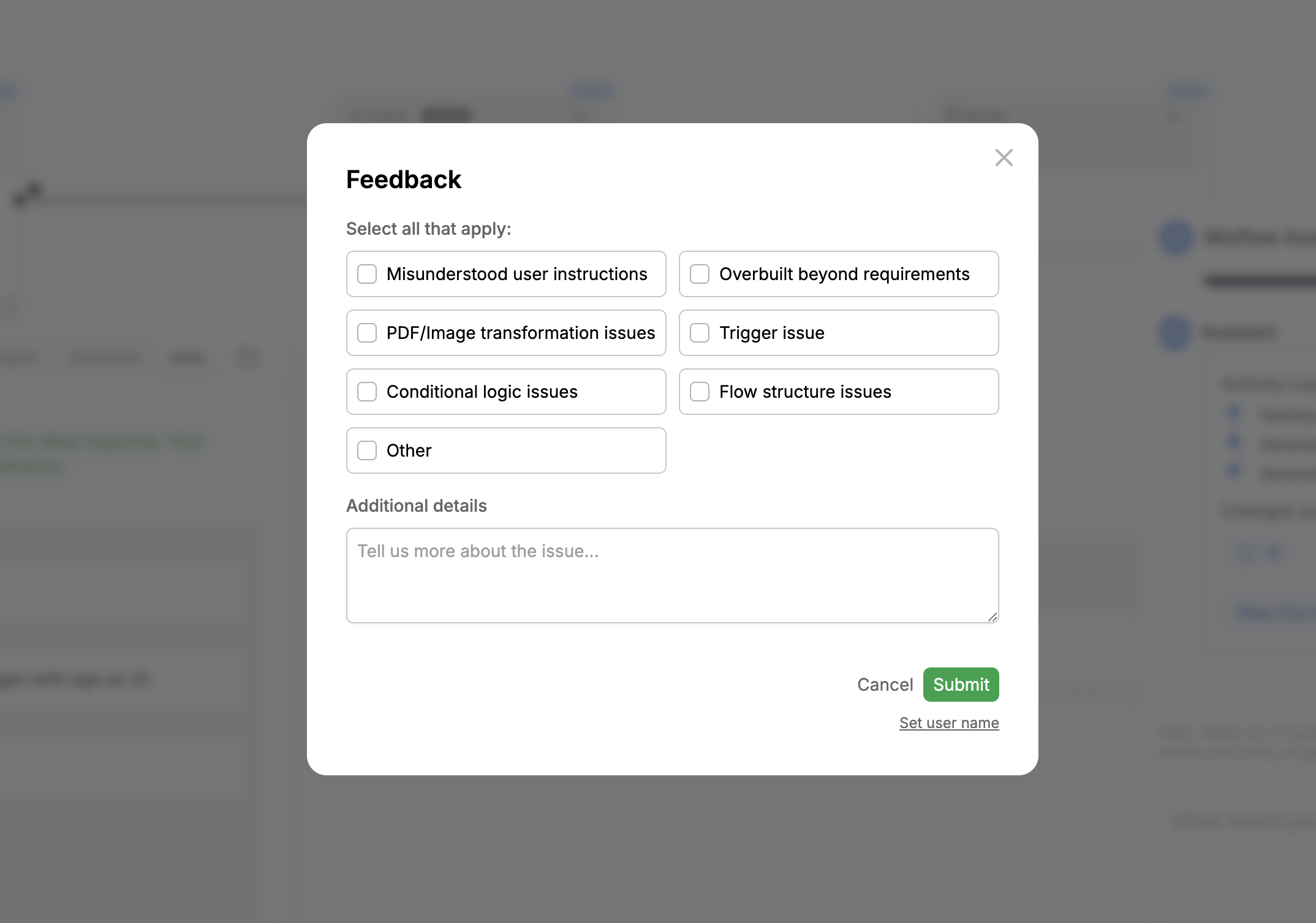
After generation completes, users see thumbs up/down buttons:
* **👍 Thumbs Up**: Good response, no further action needed
* **👎 Thumbs Down**: Opens detailed feedback form, allow user to specify what went wrong with generation.
 #### Feedback browser and editor
> Only users with elevated permissions can view the training lab.
View all collected feedbacks in training lab tables.
#### Feedback table
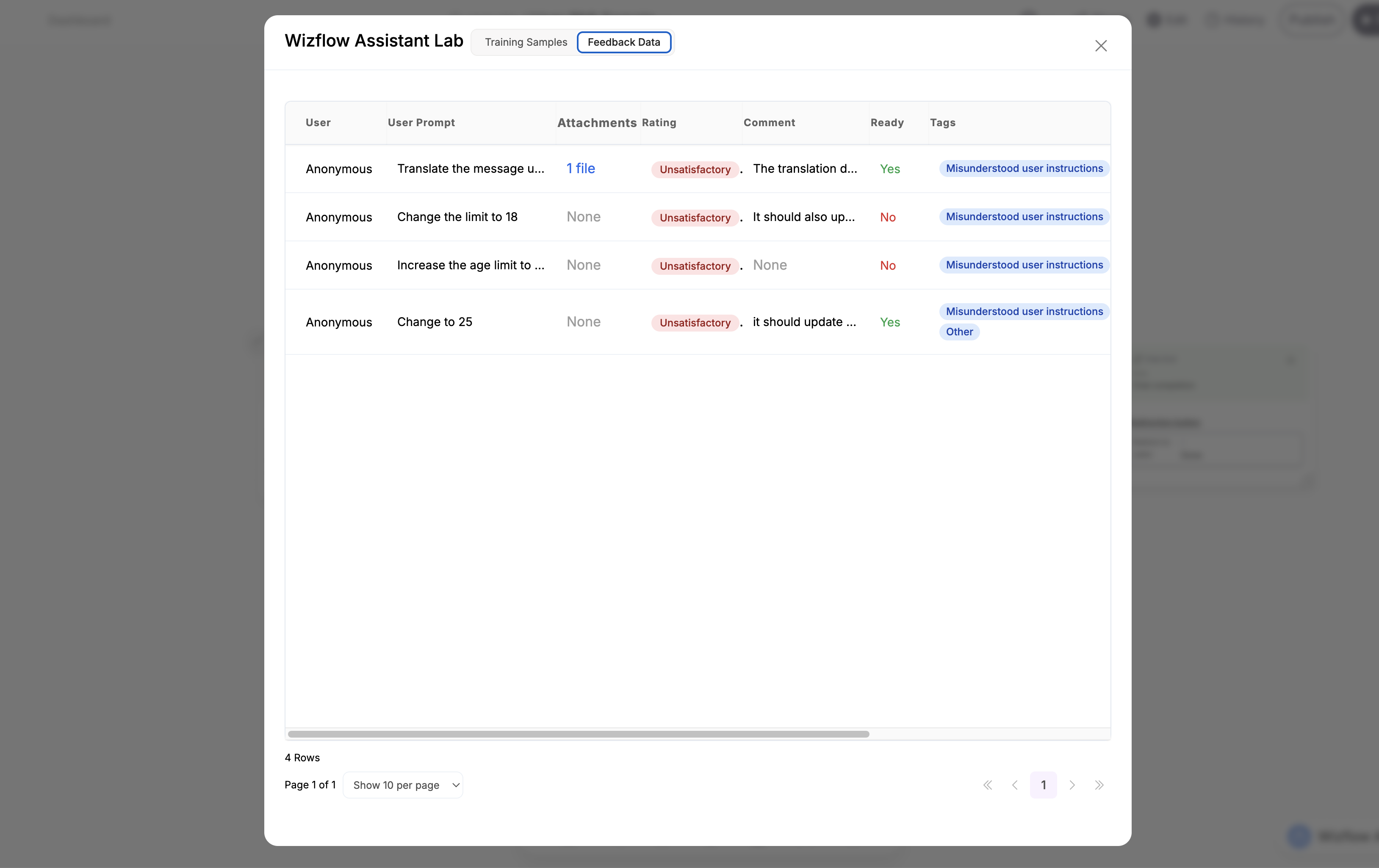
Shows all collected feedback with:
* User prompts and comments
* Rating (Satisfactory/Unsatisfactory)
* Issue tags
* Attachment count
* Review status
* Actions (View | Delete)
#### Feedback browser and editor
> Only users with elevated permissions can view the training lab.
View all collected feedbacks in training lab tables.
#### Feedback table
Shows all collected feedback with:
* User prompts and comments
* Rating (Satisfactory/Unsatisfactory)
* Issue tags
* Attachment count
* Review status
* Actions (View | Delete)
 #### Feedback editor
Each feedback has three states accessible at feedback editor, which can easily accessed from feedback table action column
##### Feedback states
[https://github.com/user-attachments/assets/e5c87799-9a86-457a-9a65-53e9010d4318](https://github.com/user-attachments/assets/e5c87799-9a86-457a-9a65-53e9010d4318)
* **Original**: Template before AI changes
* **Generated**: AI-modified template
* **Ideal**: Corrected response (created by reviewers)
##### Overall collection and dataset generation process
1. Users submit feedback
2. Internal reviewers create "Ideal" responses
3. Export script generates training datasets
4. Data used for SFT and DPO training
### Technical Overview
#### Data storage
All feedback stored in `ChatflowAssistantFeedback` table including:
* Complete template states
* User context and attachments
* Ratings and comments
* Issue categorization
#### Fine-tuning
* **SFT (Supervised Fine-Tuning)**: Transform feedbacks collected into single use samples
* **DPO (Direct Preference Optimization)**: Use rating to create dataaset consisting of preferred and non-preffered output for a user prompt. This is a different kind of optimisation that helps in improving model accuracy by comparison.
#### Key features
* Optional feedback submission
* Binary rating system
* Predefined issue tags (user-assigned)
* Role-based access control
* Automated export functionality via script
## Security & Privacy
* Anonymous feedback collection
* Permission-based training lab access
* No personal user data captured
* Secure training data exports
***
## Next Steps
Learn about all AI capabilities
Transform brief ideas into detailed prompts
Learn conversation commands
#### Feedback editor
Each feedback has three states accessible at feedback editor, which can easily accessed from feedback table action column
##### Feedback states
[https://github.com/user-attachments/assets/e5c87799-9a86-457a-9a65-53e9010d4318](https://github.com/user-attachments/assets/e5c87799-9a86-457a-9a65-53e9010d4318)
* **Original**: Template before AI changes
* **Generated**: AI-modified template
* **Ideal**: Corrected response (created by reviewers)
##### Overall collection and dataset generation process
1. Users submit feedback
2. Internal reviewers create "Ideal" responses
3. Export script generates training datasets
4. Data used for SFT and DPO training
### Technical Overview
#### Data storage
All feedback stored in `ChatflowAssistantFeedback` table including:
* Complete template states
* User context and attachments
* Ratings and comments
* Issue categorization
#### Fine-tuning
* **SFT (Supervised Fine-Tuning)**: Transform feedbacks collected into single use samples
* **DPO (Direct Preference Optimization)**: Use rating to create dataaset consisting of preferred and non-preffered output for a user prompt. This is a different kind of optimisation that helps in improving model accuracy by comparison.
#### Key features
* Optional feedback submission
* Binary rating system
* Predefined issue tags (user-assigned)
* Role-based access control
* Automated export functionality via script
## Security & Privacy
* Anonymous feedback collection
* Permission-based training lab access
* No personal user data captured
* Secure training data exports
***
## Next Steps
Learn about all AI capabilities
Transform brief ideas into detailed prompts
Learn conversation commands