> ## Documentation Index
> Fetch the complete documentation index at: https://docs.wizflow.io/llms.txt
> Use this file to discover all available pages before exploring further.
# Live Page Assistant
> Build and edit live pages by describing what you want — an AI agent that creates blocks, generates media, and wires in your flow resources
The **Live Page Assistant** is an AI agent built into the [Live Page Builder](/features/live-page-builder). Describe the page you want — in text or with a screenshot — and the assistant builds it for you, block by block. It can create and modify blocks, generate images and web components, and reference your flow's resources directly inside labels and block inputs.
***
## What You Can Do
* **Generate a full page from a prompt** — describe the page in plain language and the assistant creates the blocks
* **Build from a screenshot** — upload an image of a layout and the assistant reproduces it as blocks
* **Create, update, and delete blocks** — the assistant performs all edits on the page for you
* **Generate images** — produce imagery inline and drop it straight into the page
* **Generate and edit web components** — create custom [web component blocks](/features/live-page-web-components) and refine them through conversation
* **Reference flow resources** — interpolate and wire in entities, triggers, variables, [data models](/features/data-model-editor), and [live page services](/features/live-page-services) inside labels and block inputs
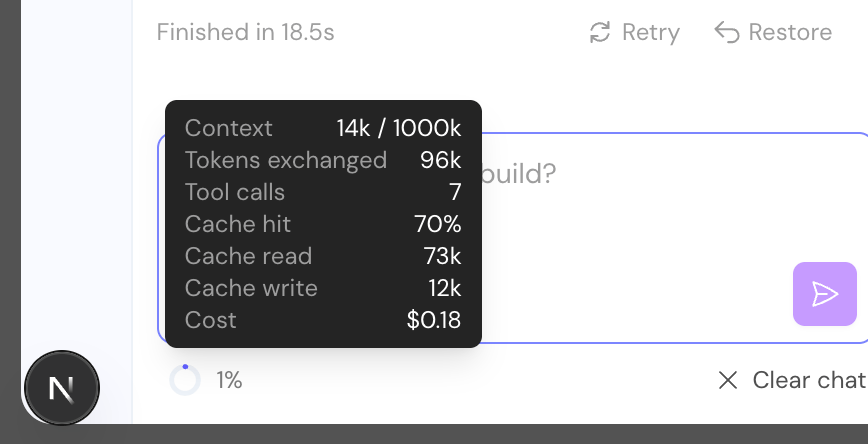
* **Track cost** — see the context used, accumulated cost, and (when available) the context remaining for the session
***
## Using the Assistant
The assistant lives in a panel alongside the builder. Open it, type an instruction, and watch it work — the conversation interleaves the assistant's replies with a timeline of the actions it takes (creating blocks, loading a block's schema, generating an image, and so on).
Open the Live Page Builder and open the assistant panel.
Type an instruction ("add a hero section with a headline and a call to action"), or attach a screenshot to reproduce a layout.
The assistant edits the page directly. Follow along in the timeline and preview the result.
Keep refining in the same conversation — the assistant resumes from where the previous turn left off.
The assistant can ask you a clarifying question or request permission before taking an action, so you stay in control of larger changes.
### Context and Cost
Each turn reports its context usage and accumulated cost. When model-limit information is available, it also reports how much context remains.
 ***
## Referencing Flow Resources
A key strength of the assistant is that it understands the resources on your flow. When you ask it to display or use real data, it can find the relevant resource and wire it into a block's label or input for you. Supported resources include:
* **Entities**
* **Triggers**
* **Variables** (it can reference variables but not create them)
* **[Data models](/features/data-model-editor)**
* **[Live page services](/features/live-page-services)**
***
## Next Steps
Back to the visual builder overview
Bring server-side data into your pages
***
## Referencing Flow Resources
A key strength of the assistant is that it understands the resources on your flow. When you ask it to display or use real data, it can find the relevant resource and wire it into a block's label or input for you. Supported resources include:
* **Entities**
* **Triggers**
* **Variables** (it can reference variables but not create them)
* **[Data models](/features/data-model-editor)**
* **[Live page services](/features/live-page-services)**
***
## Next Steps
Back to the visual builder overview
Bring server-side data into your pages