> ## Documentation Index
> Fetch the complete documentation index at: https://docs.wizflow.io/llms.txt
> Use this file to discover all available pages before exploring further.
# PDF Form Editor
> Create and edit fillable PDFs with dynamic field substitution in Flow Builder
The PDF Form Editor is a powerful feature in the Flow Builder that enables you to create fillable PDFs and substitute flow results such as chatflow responses and trigger outputs. It's available as a source option under the **PDF Trigger** entity.
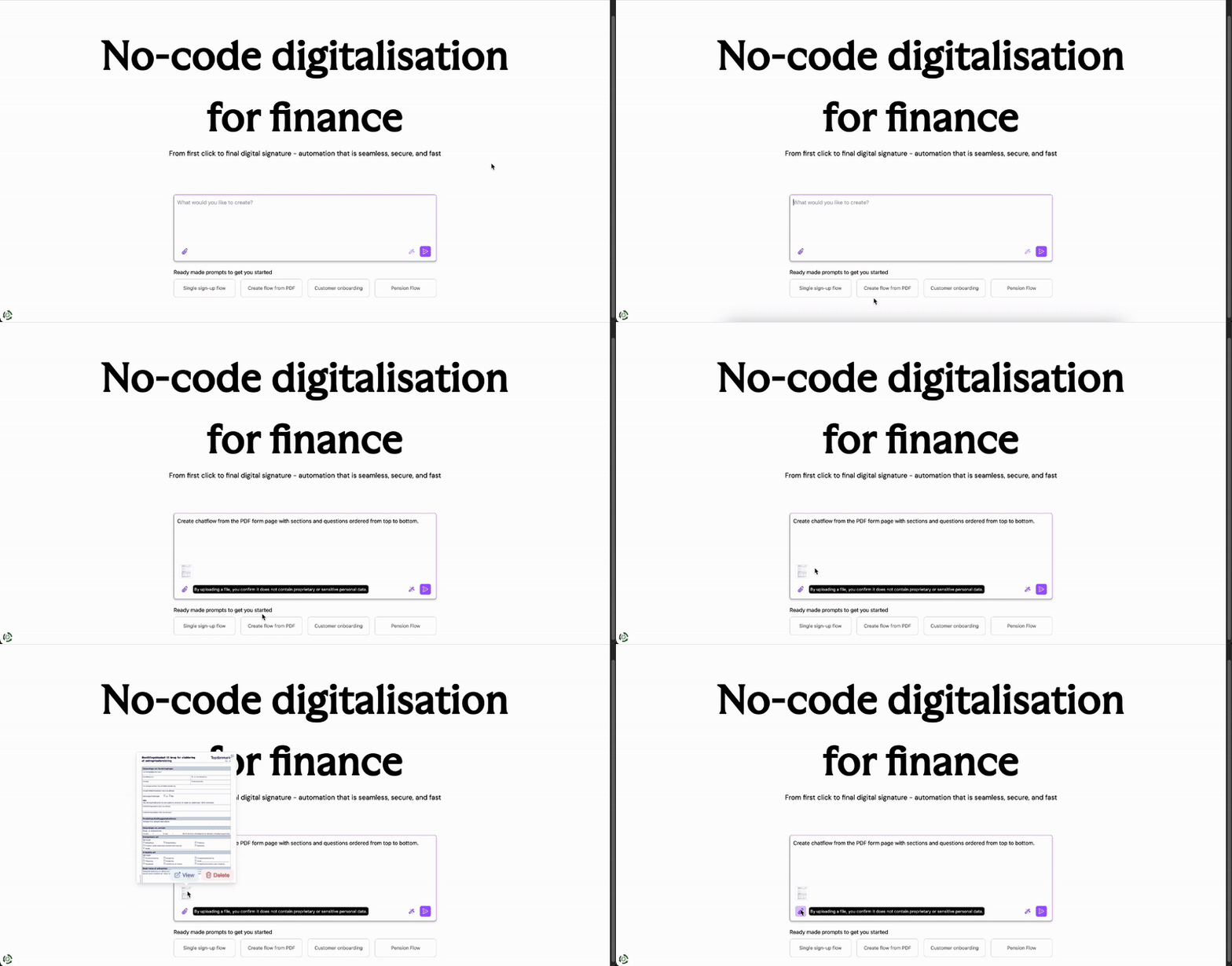 Perfect for creating dynamic documents like application forms, contracts, and personalized reports that automatically populate with customer data from your flows.
## Core Capabilities
* Load and edit both fillable and non-fillable PDF documents
* Download modified PDFs with form field annotations
* Paginated viewing with zoom controls
* Create and manage form fields
* Configure field substitutions using Flow Builder resources
* Adjust field positions and sizes (move and resize)
## Supported Field Types
✅ **Text Fields**
* Complete functionality for text input fields
* Full customization and positioning control
* Dynamic value substitution from flow data
⚠️ **Checkboxes (Limited)**
* Basic checkbox functionality available
* Full checkbox support coming soon
❌ **Not Yet Supported**
* Radio button groups
* Dropdown menus
* Full checkbox functionality
*These field types are on our development roadmap.*
## Form Field Management
The PDF Form Editor provides comprehensive field management capabilities:
### Adding and Editing Fields
* **Add new text fields** to any location on the PDF
* **Modify existing field names** for better organization
* **Remove unwanted form fields** that aren't needed
* **Adjust field positions and sizes** with drag-and-drop interface
### Field Substitution Configuration
Map Flow Builder resources directly to form fields:
* Insert chatflow responses into form fields
* Use trigger data as field values
* Dynamically populate forms based on flow execution
* Set default values when resources are undefined
Use the Flow Builder resource view to easily configure which flow data should populate each form field.
## Field Substitution
The editor's substitution feature allows you to create truly dynamic documents:
Choose the form field you want to make dynamic
Map the field to a Flow Builder resource (chatflow response, trigger output, etc.)
Define fallback values when the resource is undefined
Preview how the field will populate with actual flow data
## Navigation and Controls
### Page Navigation
* Browse through multiple pages of your PDF
* Adjust zoom levels for precise field placement
* View page thumbnails for quick navigation
### Field Management Views
* **All Fields View**: List all form fields across the entire document
* **Page Fields View**: Show only form fields on the current page
* **Resource Mapping**: Visual overview of all field substitutions
## Usage Example
See the PDF Form Editor in action with our template example:
[PDF Form Template Demo](https://b2b-dev.dreamplan.io/dashboard/template-builder/remote/ei5-CA_6x-2MrcD_ooAsh)
*Note: Requires Wizflow account access*
## Current Limitations
**Known Limitations**
While the PDF Form Editor is powerful, please note these current limitations:
* Radio button groups & dropdowns are not yet supported
* Changing field types after creation is not available
* Multi-widget support is not implemented
* Cannot add custom text and elements directly in PDF
* Images/files cannot be substituted in PDF forms
*These features are actively being developed.*
## Technical Implementation
### Field Widget Architecture
The editor currently supports one widget per form field, following PDF form standards:
**How PDF Forms Work:**
* Each **field** serves as the data source
* **Widgets** represent the visual instances of a field
* Multiple widgets can share the same field value
* Widgets can appear across different pages while maintaining synchronized values
**Current Implementation:**
* One widget per form field for simplicity
* Direct mapping between Flow Builder resources and field values
* Automatic value synchronization across form instances
## Getting Started
To use the PDF Form Editor in your flows:
1. **Add PDF Trigger** entity to your flow
2. **Select "PDF Form Editor"** as the source option
3. **Upload your PDF** (fillable or non-fillable)
4. **Create and configure** form fields as needed
5. **Map flow resources** to form fields for dynamic population
6. **Test your flow** to ensure proper field substitution
Start with a simple PDF and a few text fields to get familiar with the interface before creating complex forms.
***
## Related Features
* [PDF Trigger Entity](/features/entities-overview) - Technical implementation details
* [Flow Builder Basics](/features/flow-builder-basics) - General flow building concepts
The PDF Form Editor is a powerful tool with many capabilities. If you need assistance setting up dynamic PDF forms for your specific use case, our support team can help guide you through the process.
Perfect for creating dynamic documents like application forms, contracts, and personalized reports that automatically populate with customer data from your flows.
## Core Capabilities
* Load and edit both fillable and non-fillable PDF documents
* Download modified PDFs with form field annotations
* Paginated viewing with zoom controls
* Create and manage form fields
* Configure field substitutions using Flow Builder resources
* Adjust field positions and sizes (move and resize)
## Supported Field Types
✅ **Text Fields**
* Complete functionality for text input fields
* Full customization and positioning control
* Dynamic value substitution from flow data
⚠️ **Checkboxes (Limited)**
* Basic checkbox functionality available
* Full checkbox support coming soon
❌ **Not Yet Supported**
* Radio button groups
* Dropdown menus
* Full checkbox functionality
*These field types are on our development roadmap.*
## Form Field Management
The PDF Form Editor provides comprehensive field management capabilities:
### Adding and Editing Fields
* **Add new text fields** to any location on the PDF
* **Modify existing field names** for better organization
* **Remove unwanted form fields** that aren't needed
* **Adjust field positions and sizes** with drag-and-drop interface
### Field Substitution Configuration
Map Flow Builder resources directly to form fields:
* Insert chatflow responses into form fields
* Use trigger data as field values
* Dynamically populate forms based on flow execution
* Set default values when resources are undefined
Use the Flow Builder resource view to easily configure which flow data should populate each form field.
## Field Substitution
The editor's substitution feature allows you to create truly dynamic documents:
Choose the form field you want to make dynamic
Map the field to a Flow Builder resource (chatflow response, trigger output, etc.)
Define fallback values when the resource is undefined
Preview how the field will populate with actual flow data
## Navigation and Controls
### Page Navigation
* Browse through multiple pages of your PDF
* Adjust zoom levels for precise field placement
* View page thumbnails for quick navigation
### Field Management Views
* **All Fields View**: List all form fields across the entire document
* **Page Fields View**: Show only form fields on the current page
* **Resource Mapping**: Visual overview of all field substitutions
## Usage Example
See the PDF Form Editor in action with our template example:
[PDF Form Template Demo](https://b2b-dev.dreamplan.io/dashboard/template-builder/remote/ei5-CA_6x-2MrcD_ooAsh)
*Note: Requires Wizflow account access*
## Current Limitations
**Known Limitations**
While the PDF Form Editor is powerful, please note these current limitations:
* Radio button groups & dropdowns are not yet supported
* Changing field types after creation is not available
* Multi-widget support is not implemented
* Cannot add custom text and elements directly in PDF
* Images/files cannot be substituted in PDF forms
*These features are actively being developed.*
## Technical Implementation
### Field Widget Architecture
The editor currently supports one widget per form field, following PDF form standards:
**How PDF Forms Work:**
* Each **field** serves as the data source
* **Widgets** represent the visual instances of a field
* Multiple widgets can share the same field value
* Widgets can appear across different pages while maintaining synchronized values
**Current Implementation:**
* One widget per form field for simplicity
* Direct mapping between Flow Builder resources and field values
* Automatic value synchronization across form instances
## Getting Started
To use the PDF Form Editor in your flows:
1. **Add PDF Trigger** entity to your flow
2. **Select "PDF Form Editor"** as the source option
3. **Upload your PDF** (fillable or non-fillable)
4. **Create and configure** form fields as needed
5. **Map flow resources** to form fields for dynamic population
6. **Test your flow** to ensure proper field substitution
Start with a simple PDF and a few text fields to get familiar with the interface before creating complex forms.
***
## Related Features
* [PDF Trigger Entity](/features/entities-overview) - Technical implementation details
* [Flow Builder Basics](/features/flow-builder-basics) - General flow building concepts
The PDF Form Editor is a powerful tool with many capabilities. If you need assistance setting up dynamic PDF forms for your specific use case, our support team can help guide you through the process.